
CERT Filing: Creating a new Project File
You need to be logged in as an Admin to do this, click on this icon on your dashboard – if you do not receive an email with authentication code, please check your spam folder or contact us.
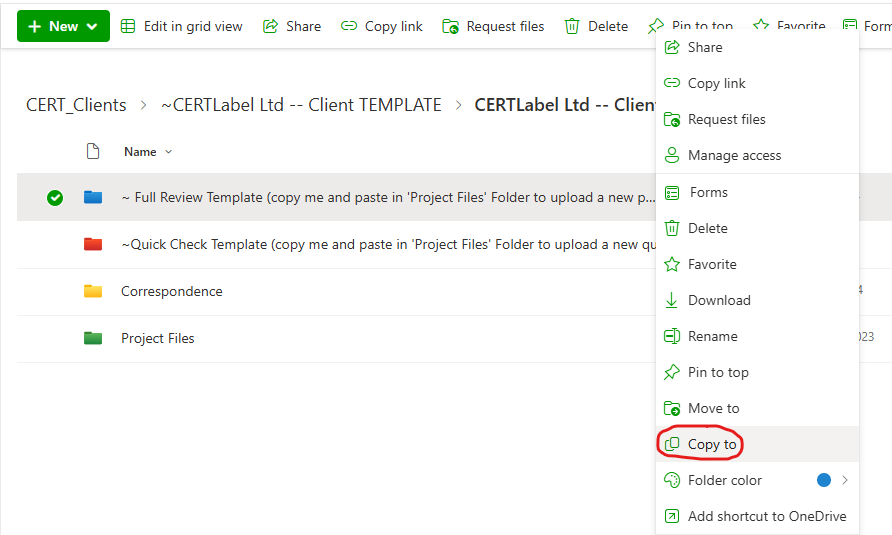
In the Admin filing area, choose either a Full Review or a Quick Check by a right click and selecting the relevant folder then choose “copy to”.
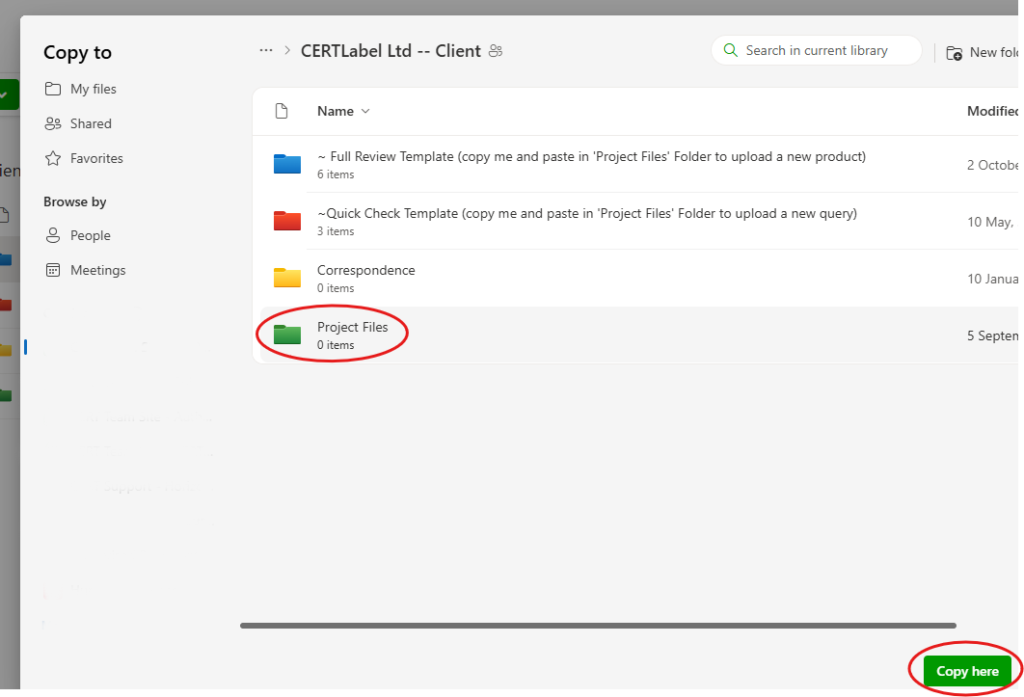
Choose to copy the template folder to ‘Project Files’ and then click on “Copy Here” in the bottom right corner.
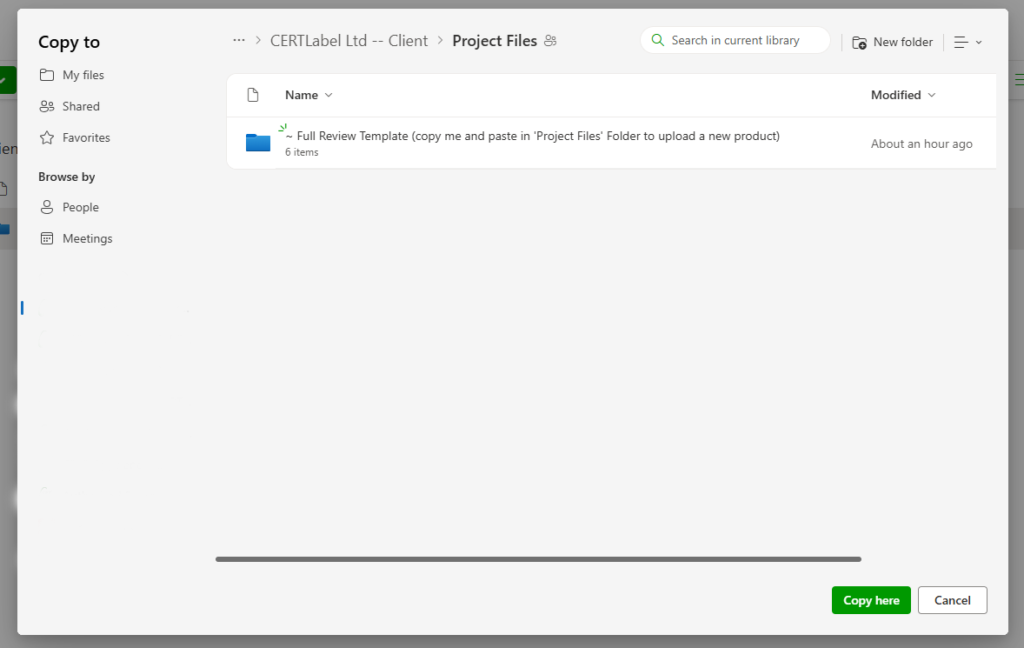
You will see confirmation that the file has been copied into the folder at the bottom of the screen.

Open the “Project Files” folder and click on the newly copied folder, then right click, choose “Rename” and edit the Project Template folder with your Product name and Article number (if applicable).
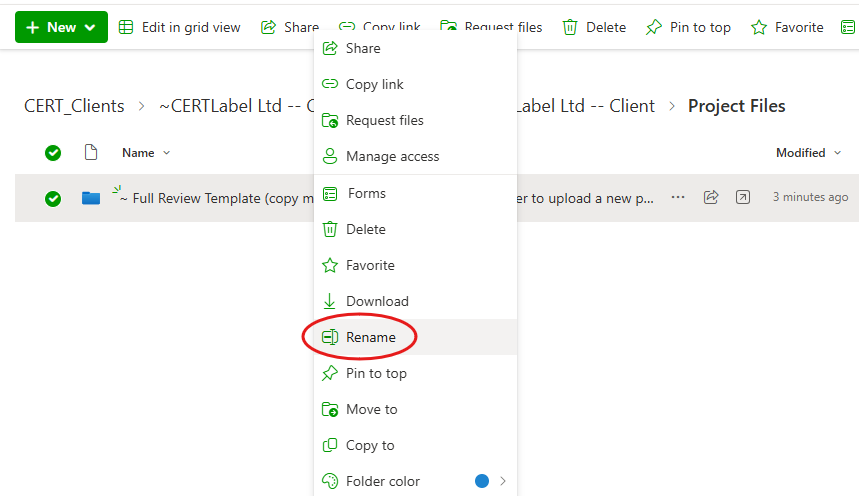
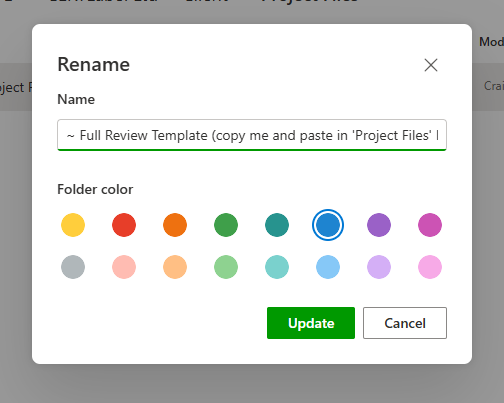
Name the folder with a unique reference (project/product code) followed by a clear identifiable name. These are to be replicated in the Project Schedule for easy tracking. Finish by clicking on “Update”.
Quick Tip: You can quickly duplicate a new template folder in the Project File by right selecting on the folder/file and choosing ‘Copy To’. The default position will be the folder you are currently in and selecting “Copy Here” will save it in the same folder.
If there is already a folder/file with the same name it will repeat the name with an extension on the end and you can readily rename it afterwards.